Common Causes of Audio Issues
Audio issues can be frustrating and disruptive, whether you’re trying to enjoy music, participate in a video call, or work on an audio project. Understanding the common causes of sound problems is crucial for effective audio troubleshooting. Both hardware and software factors play significant roles in the occurrence of these issues.
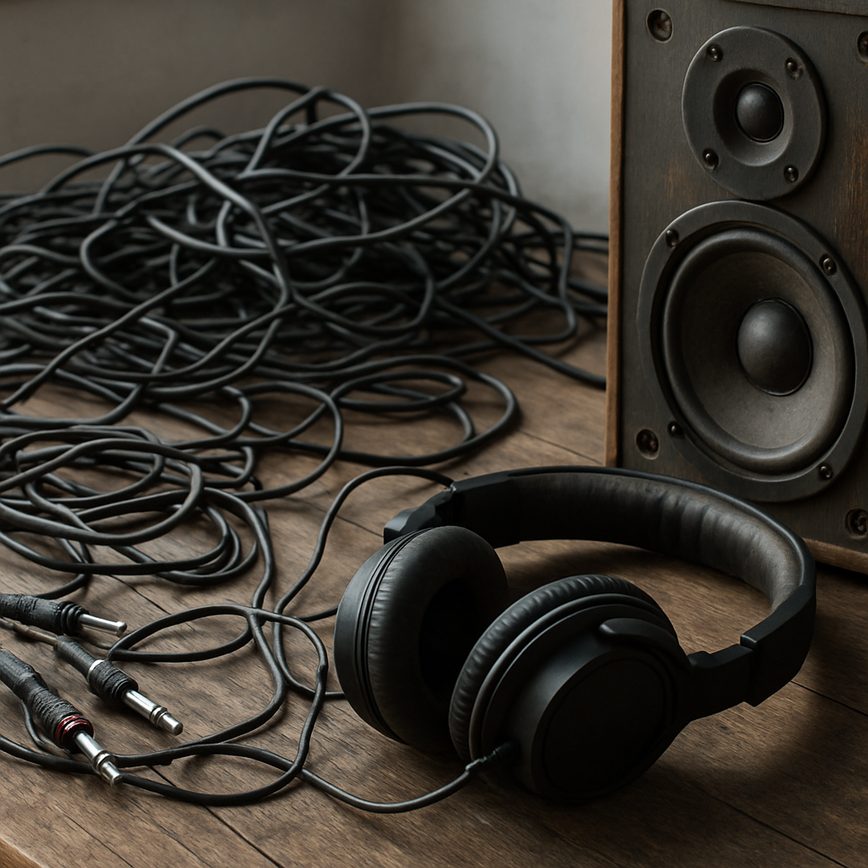
One of the primary hardware-related causes of audio issues is faulty or improperly connected devices. Loose cables, damaged headphones, or malfunctioning speakers can all lead to sound problems. Additionally, audio jacks and ports that have accumulated dust or debris may prevent proper connection, resulting in distorted or no sound output.
Another hardware concern involves internal components such as sound cards or audio interfaces. If these components are outdated, poorly installed, or malfunctioning, the quality of audio output can degrade significantly. Users should verify that all hardware components are compatible with their system and properly maintained to minimize audio disruptions.
On the software side, incorrect audio settings often cause audio issues. Volume levels might be muted or set too low, or the wrong playback device could be selected as the default output. Audio driver problems are another prevalent software factor; outdated or corrupt drivers can lead to compatibility issues, resulting in intermittent or no sound.
Operating system updates or changes can sometimes interfere with audio configurations, causing new sound problems where none existed before. Additionally, software conflicts such as multiple applications trying to access the audio device simultaneously, or issues stemming from third-party audio enhancement programs, can also contribute to audio troubleshooting challenges.
In summary, addressing audio issues requires a careful examination of both hardware and software components. Ensuring secure physical connections, maintaining updated and compatible drivers, and correctly configuring audio settings are essential steps in resolving common sound problems. By systematically troubleshooting these areas, users can significantly improve their audio experience.
Hardware-related Audio Problems
Hardware issues are a common cause of audio problems and can stem from faulty cables, damaged speakers, or malfunctioning sound cards. Identifying these problems requires a thorough inspection of the physical components connected to your audio devices. For instance, a loose or broken cable may result in distorted or completely absent sound. It is crucial to examine the cables for any signs of wear, fraying, or bent connectors, and to ensure they are securely plugged into the correct ports.
Speakers can also cause sound hardware problems if their internal components are damaged. Test your speakers by connecting them to another device to see if the issue persists. If the sound quality remains poor or nonexistent, the speakers may need repair or replacement. Additionally, faulty sound cards in your computer can disrupt audio output, leading to crackling noises or no sound at all. Checking the device manager for any hardware errors or trying an external sound card can help isolate the issue.
By methodically testing each element—starting from the cables to the speakers, and finally the sound card—you can pinpoint the source of the hardware issues affecting your audio devices. This approach will help restore optimal sound quality by addressing the specific hardware problem, ensuring your sound hardware functions correctly.
Software and Driver Conflicts
Outdated or incompatible audio drivers are one of the most common causes of sound issues on a computer. Audio drivers act as the bridge between your operating system and audio hardware, and when these drivers become outdated or fail to support the latest system updates, they can cause malfunctions such as distorted sound, no audio output, or frequent audio dropouts. Regularly updating audio drivers ensures compatibility with the latest software and operating system enhancements, preventing many of these issues from occurring.
Additionally, software conflicts can seriously impact audio performance. Multiple audio-related programs running simultaneously or background processes using audio resources can create conflicts that lead to glitches or erratic audio behavior. For instance, some media players or communication apps might take exclusive control over the audio device, preventing other applications from producing sound. These conflicts often arise from poorly optimized or incompatible software interacting with your audio drivers and hardware.
To resolve these problems, it is crucial to keep your system’s audio drivers up to date, uninstall any conflicting applications, and configure software settings to avoid resource clashes. Checking for driver updates through device manager or the hardware manufacturer’s website and ensuring that your audio-related software is compatible with your operating system version can help mitigate most driver conflicts and software issues, leading to a much smoother and reliable audio experience.
Step-by-Step Audio Debugging Techniques
When troubleshooting audio problems, a systematic approach is essential to efficiently identify and fix the root cause. This step-by-step guide will walk you through the necessary audio debugging steps to resolve common and complex audio issues effectively.
- Check Hardware Connections: Begin with verifying all audio cables, headphones, speakers, and external devices are properly connected. Ensure there are no loose plugs or damaged wires that might prevent audio transmission.
- Verify Audio Settings: Navigate to your device’s audio settings and confirm the correct playback device is selected. Check volume levels and ensure that mute is not enabled either on the software or physical hardware.
- Restart Audio Services and Devices: Sometimes, simply restarting your computer, audio interface, or Bluetooth devices can resolve software glitches causing audio failures. This clears temporary errors in audio drivers or system processes.
- Update or Reinstall Drivers: Outdated or corrupted audio drivers often cause sound issues. Access your device manager, check for available updates, or reinstall audio drivers to ensure compatibility and functionality.
- Test with Different Audio Sources: Isolate the problem by playing different audio files or using various applications. If sound issues persist across multiple sources, the problem likely lies in hardware or system settings.
- Run Built-in Troubleshooters: Many operating systems provide automated troubleshooting tools to detect and fix sound problems. These tools can identify common issues and apply fixes without manual intervention.
- Check for Software Conflicts: Some third-party applications or audio enhancements can conflict with your primary audio system. Temporarily disable or uninstall these to see if they are causing the audio problem.
- Adjust Audio Format and Quality: Sometimes, incompatible audio formats or sample rates cause playback issues. Modify settings in your audio control panel to test different formats and bit rates for better compatibility.
- Inspect Physical Hardware: If all software checks are clear, test your speakers, headphones, or audio interfaces on other devices. Faulty hardware should be repaired or replaced.
- Seek Professional Help: If your troubleshooting steps don’t fix the audio issue, consult an audio technician or seek support from the device manufacturer for advanced diagnostics and repair options.
Checking Physical Connections
When troubleshooting audio issues, the first step is to check all physical connections carefully. Start by inspecting the audio cables; ensure that they are securely plugged into the correct ports on both your computer or audio device and the speakers or headphones. Loose or partially connected cables can often cause sound problems.
Next, examine the audio cables for any visible signs of damage such as fraying, cuts, or bends that could indicate a hardware fault. If you suspect a cable might be defective, try replacing it with a known working one to see if the audio issue persists.
It is also crucial to check your headphones or speakers. Confirm that the headphone jack fits snugly into the port without any wobbling. For speakers, verify that the power connection is stable and the volume controls are adjusted correctly. Testing the headphones or speakers on another device can help determine whether the hardware itself is problematic.
Performing a thorough hardware check by verifying all physical connections eliminates the possibility of hardware defects being the source of your audio issues. By addressing these basic steps involving physical connections, audio cables, and device checks, you can quickly rule out many common causes before moving on to more complex troubleshooting methods.
Verifying Software Settings and Drivers
When troubleshooting audio issues, the first step is to verify your audio settings. Open the sound settings on your computer by navigating to the control panel or system preferences, depending on your operating system. Ensure the correct playback device is selected and the volume levels are appropriately adjusted. Sometimes, audio problems stem from incorrect device selection or muted channels.
Next, check for driver updates. Outdated or corrupt audio drivers can cause sound disruptions or complete failure. To update drivers, visit the manufacturer’s website or use the built-in update feature in your operating system. Regularly updating drivers ensures compatibility with the latest software and fixes bugs that may affect audio performance.
Using the device manager tool is also an essential part of software verification for audio troubleshooting. Access the device manager on your computer to inspect the status of your audio hardware. If a yellow warning icon appears next to the audio device, it may indicate a driver issue or hardware malfunction. From here, you can also uninstall and reinstall drivers to resolve persistent problems. This detailed software verification, including checking audio settings, driver updates, and device manager diagnostics, is crucial for resolving common audio issues efficiently.
Using Diagnostic Tools and Utilities
When troubleshooting audio issues, diagnostic tools and audio utilities play a crucial role in quickly identifying and resolving problems. These software solutions provide detailed system diagnostics that help isolate the exact cause of audio malfunctions, whether it’s a hardware fault, driver issue, or configuration error.
One common diagnostic tool is the built-in audio troubleshooter available on many operating systems. This tool automatically scans audio devices and settings, detecting common errors and suggesting fixes without requiring advanced user intervention. For more advanced analysis, software like latency monitoring utilities and signal path analyzers can reveal delays or disruptions in audio processing.
Audio utilities such as driver management apps and system diagnostics suites offer comprehensive insights into the health of your audio components. They allow users to review driver versions, update software, and identify conflicts or disabled devices. These utilities often include logging capabilities that provide detailed reports for further troubleshooting or technical support.
Employing these diagnostic tools and audio utilities effectively minimizes downtime and enhances the accuracy of troubleshooting. By systematically leveraging system diagnostics, you can address audio issues efficiently and ensure your sound environment is functioning optimally.
Preventing Future Audio Issues
Preventing audio issues before they arise is essential for maintaining a smooth and enjoyable sound experience. Implementing proper audio prevention strategies and following regular maintenance tips can significantly reduce the chances of encountering sound problems in the future. Here are some best practices to help you avoid common audio issues and keep your audio systems running flawlessly.
Start by keeping all your audio equipment clean and dust-free. Dust and dirt can easily accumulate in connectors, jacks, and ports, causing poor connections or unwanted noise. Use compressed air and appropriate cleaning tools to maintain your devices regularly. This simple maintenance tip can make a big difference in preventing audio degradation.
Another key aspect of audio prevention is ensuring all cables are in good condition and properly secured. Avoid tangling or bending cables sharply, as this can cause internal damage leading to intermittent audio or complete failure. Label your cables clearly to avoid confusion and accidental disconnections during setup or transport.
Regularly update the firmware and software of your audio devices and interfaces. Manufacturers frequently release updates that fix bugs and improve performance, reducing the risk of sound problems caused by outdated or incompatible software. Always download updates from official sources and follow installation instructions carefully.
Properly grounding your audio equipment is another crucial maintenance tip. Poor grounding can introduce hum and interference in audio signals. Use grounded power outlets and consider investing in power conditioners or surge protectors to safeguard your equipment from electrical surges that may cause damage or audio disturbances.
Monitor audio levels carefully during use. Avoid pushing equipment beyond its limits, as excessive volume or distortion can lead to permanent damage. Use meters and visual indicators to keep levels within recommended ranges, ensuring clean and clear sound reproduction.
Finally, document and regularly review your audio setup and configurations. Keeping a detailed log of your equipment settings, cable layouts, and troubleshooting steps helps quickly identify and resolve any future sound problems. Consistent care and attention to your audio system will greatly reduce the likelihood of issues recurring.
Regular Driver and Software Updates
Keeping your audio drivers and software up to date is essential for maintaining optimal audio performance and preventing compatibility issues. Driver updates often include crucial bug fixes and enhancements that enable your audio hardware to communicate effectively with your operating system and applications. Neglecting these updates can lead to audio glitches, delays, or even system crashes, all of which disrupt your listening or recording experience.
Software maintenance is equally important in the realm of audio. Audio applications periodically release updates that improve stability, add new features, and address security vulnerabilities. By regularly applying these updates, you ensure that your audio software remains compatible with the latest drivers and system updates, minimizing conflicts and improving overall reliability.
Moreover, routine audio maintenance through updates helps you avoid frustrating issues such as distorted sound, unexpected cutouts, or hardware detection failures. It’s a proactive approach that saves you time and effort troubleshooting problems that stem simply from outdated software components. Prioritize driver updates and software maintenance as part of your regular audio upkeep to enjoy seamless and high-quality sound every time you use your devices.
Proper Hardware Handling and Setup
Correct hardware setup and proper audio equipment care are essential to ensure longevity and optimal performance of your devices. Always begin by placing your audio equipment on stable, vibration-free surfaces to reduce mechanical stress that can lead to wear. When connecting devices, handle cables with care by avoiding sharp bends or excessive pulling, which can damage internal wiring and connectors.
Regularly inspect your hardware setup to identify any loose connections or signs of physical damage before they become serious problems. Using dust covers and protective cases helps prevent dirt accumulation and accidental impact damage. Moreover, avoid exposing your equipment to extreme temperatures or humidity, as these conditions can degrade electronic components rapidly.
During setup, ensure all components are powered off before making or changing connections to prevent electrical surges that might harm the devices. Arranging cables neatly with ties or clips can prevent tangling and accidental yanks that often result in broken connectors and wear. In summary, consistent attention to hardware setup and gentle handling plays a crucial role in audio equipment care, helping you prevent damage and maintain sound fidelity over time.

I’ve been playing video games since I was a kid, and that passion naturally led me to explore how they’re made. I love diving into game design concepts and sharing insights with fellow enthusiasts. When I’m not testing new titles, I’m tinkering with Unity and learning new programming tricks.